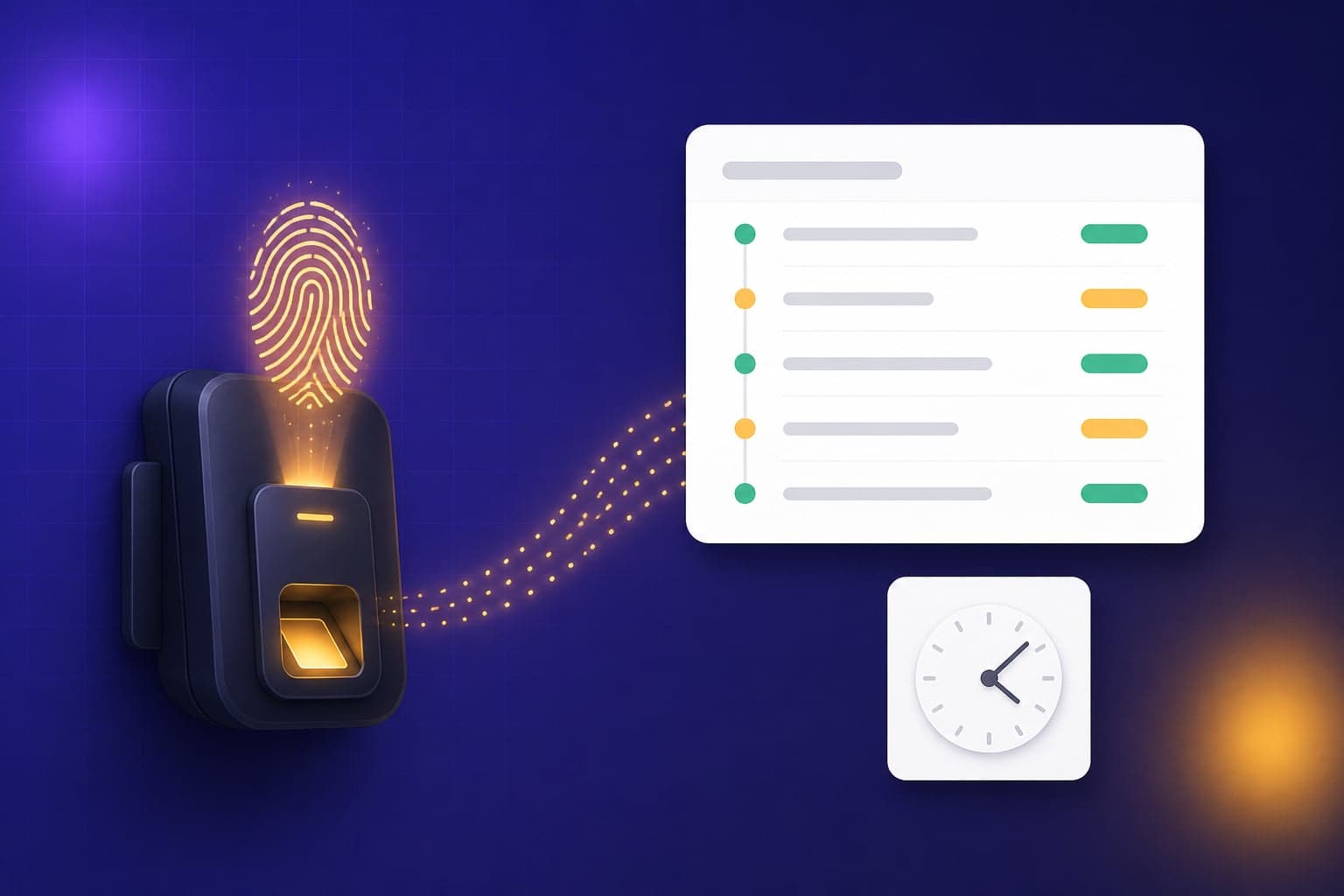
Turn raw fingerprint and face-scan logs from your Hikvision or ZKTeco device into clean, payroll-ready attendance.
If your office uses a biometric device, you already have the raw data for accurate attendance — it is just sitting on the machine. TeamCey reads those punch logs and turns them into clean daily attendance that flows straight into payroll.
How attendance flows in TeamCey
The device records raw punches. You export those as a CSV, import them into TeamCey, and the system matches each punch to an employee, applies your shift rules, and flags anything that needs a human eye. The result is a tidy attendance record per person, per day.
Export logs from your device
- 1
Export attendance records as CSV
On a Hikvision or ZKTeco device, open the attendance or access log and export to CSV. Most devices do this from the admin menu or their desktop software.
- 2
Include the key columns
Make sure the export has the employee or device ID and the punch date and time. Without those, punches cannot be matched.
- 3
Save the file somewhere you can find it
Keep exports named by date range so re-importing or auditing later is painless.
Import into TeamCey
- 1
Open attendance imports
Head to the attendance section and start a new import.
- 2
Upload your CSV
Select the file you exported from the device.
- 3
Map the columns
Point TeamCey at the ID and timestamp columns. It remembers the layout for next time.
- 4
Run the import
TeamCey processes the punches, matches employees and builds daily attendance.
Reviewing exceptions
Real-world punch data is never perfect. After each import, TeamCey shows you exactly what needs attention:
- Unmatched punches where the device ID has no matching employee
- Missing punch-outs where someone forgot to scan when leaving
- Late arrivals and early departures against the shift
- Duplicate punches within a short window
Shifts and rules do the thinking
Once your shifts, grace periods and overtime rules are set, TeamCey applies them to every import automatically. Late thresholds, half-days and OT are calculated consistently instead of being judged by hand.
Make it a daily habit
- Import punches daily or weekly rather than in one big month-end rush
- Resolve exceptions while the day is still fresh in everyone's memory
- Lock attendance for the period before you start payroll
Try it in your own workspace
The best way to learn TeamCey is to follow along. Start a free workspace and put this guide into practice.
Get started free